How to Make AI Thumbnails for YouTube Videos
AI thumbnails can lift your click-through rate without hours in Photoshop. Here's the exact workflow we use, plus the tools worth your time in 2026.
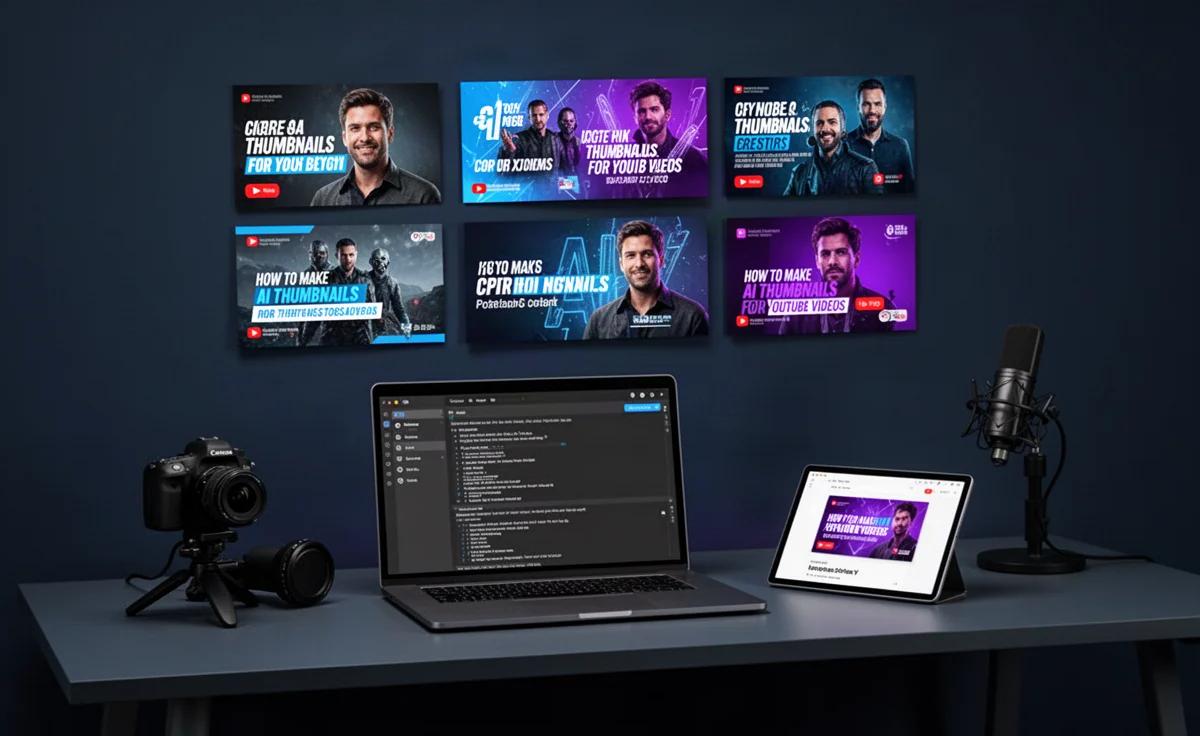
By TheCreatorPilot Team — creators testing AI tools for video, YouTube and content
You spend six hours editing a video, then realize the only thing standing between you and a click is a 1280x720 image you haven't made yet. If that moment sounds familiar, you're exactly who this guide is for.
The short answer: you can make effective AI thumbnails for YouTube in under ten minutes using a combination of AI image generation and a design tool like Canva. You'll typically generate a background or subject with an AI image tool, then add text, contrast, and branding in an editor. The honest tradeoff is control versus speed: AI won't nail your exact vision every time, but it will get you 80% there in a fraction of the time. Here's the workflow we actually recommend.
The AI Thumbnail Workflow, Step by Step
Most AI thumbnail tutorials overcomplicate this. You don't need five tools. You need two: one that generates visuals and one that assembles the final image.
Quick note: some links in this article are affiliate links, they support the blog at no extra cost to you.
Write a specific prompt. Don't type "excited gamer." Type "close-up portrait of an excited adult male, mouth open in surprise, pointing at blank space on the right, neon purple and blue lighting, YouTube thumbnail style, high contrast, photorealistic." The more visual direction you give, the fewer generations you'll burn.
Generate 4-6 options. Run the same prompt multiple times or tweak one variable at a time. Pick the one with the clearest facial expression, cleanest edges, and the most empty space for text.
Open Canva and set the right canvas. Create a custom design at 1280x720 pixels. Import your AI-generated image as the background or subject.
Add text with heavy contrast. Use three to five words max. Big, bold, sans-serif font. Add a dark drop shadow or outline so the text pops at small sizes. YouTube thumbnails shrink dramatically in the sidebar, so if you can't read it at 20% size, fix it.
Boost saturation and contrast. Slightly oversaturate the colors. Thumbnails compete in a feed full of bright, punchy images. A flat, dull image gets scrolled past.
Export and upload. That's genuinely the whole loop. The more you repeat it, the faster your prompt instincts get.
Tools We Actually Use for This
The tool market for AI thumbnails is crowded, but you only need to know a few solid options. Here's how they split up:
| Tool | Best For | Main Limitation |
|---|---|---|
| Canva | Assembling the final thumbnail, text, branding | AI generation is solid but not the most photorealistic |
| Pikzels | Purpose-built AI thumbnails with creator-trained models | Less control over fine details than manual editing |
| CapCut | Quick edits and background removal on a budget | Thumbnail features are secondary to video editing |
Canva is the workhorse here because the Magic Media generator is built into the same canvas where you'll add text and export. That cuts out the back-and-forth of switching tabs between a generator and an editor. The tradeoff: Canva's AI images can look slightly generic compared to dedicated generators, so your prompt specificity matters a lot.
If you want a more detailed walkthrough of the fast version of this process, we covered it in depth in our guide on how to make YouTube thumbnails with AI fast.
Who this workflow is for: creators who want a repeatable thumbnail process without hiring a designer or spending an hour in Photoshop per video.
Skip it if: you have very specific branding requirements or need pixel-perfect control over every element. AI generation involves some unpredictability, and if that will frustrate you, a template-based manual approach may serve you better.
What AI Gets Wrong (and How to Fix It)
AI image generators have consistent weaknesses in thumbnails, and knowing them upfront saves you generations:
Hands and fingers. AI still produces deformed hands regularly. Solution: crop them out, use prompts that keep hands off-screen, or pick a generation where hands look acceptable on the first try rather than trying to fix them.
Text inside AI images. If you ask an AI generator to include words in the image, you'll almost always get gibberish. Solution: never prompt for text. Add all text in Canva afterward. This is non-negotiable.
Weird skin textures and over-smoothing. Some generators produce a plastic, airbrushed look that signals "AI-generated" instantly. Solution: add a slight grain or texture in your editor, or reduce the smoothness setting if your tool has one.
Busy backgrounds. AI loves filling empty space. But for thumbnails, you need empty space for text. Solution: include "large empty area on the right/left for text" directly in your prompt.
The Real Role of a Thumbnail
A thumbnail's job isn't to be beautiful. It's to make someone stop scrolling and click. That means the subject's expression, the color contrast, and the three-to-five word text overlay matter more than artistic quality.
In our experience, creators overcomplicate thumbnails with too many elements. The best-performing ones are usually simple: one clear face or object, one bold color scheme, one short line of text. AI helps you generate the visual faster, but the strategic decisions, what to show, what emotion to capture, what words to use, still come from you.
One honest note on freshness: AI image tools and their capabilities change constantly as of 2026. The tools listed here are our current picks, but check each official site for the latest features and pricing before committing.
FAQ
Can I use AI-generated thumbnails on YouTube without issues? Yes. YouTube's monetization policies don't prohibit AI-generated thumbnails as long as they don't contain misleading content. The same thumbnail rules apply to AI and manually created images. Disclose AI use only if it's materially deceptive, which a thumbnail rarely is.
What is the best AI tool for YouTube thumbnails? For most creators, Canva's all-in-one approach beats dedicated thumbnail generators because it combines image generation, text, and export in one place. Dedicated tools like Pikzels have creator-trained aesthetics but cost more per month. Pick based on whether you value convenience or style specificity.
How long does it take to make an AI thumbnail? With a clear prompt and a repeatable template, ten to fifteen minutes from prompt to published thumbnail is realistic. The first few attempts take longer as you learn what prompts produce what you want. Speed improves quickly with repetition.
Are AI thumbnails better than hiring a designer? They're faster and cheaper, but not always better. A skilled designer gives you consistent branding and studio-quality results. AI gives you speed and low cost. For most small creators, AI plus a Canva template offers the best tradeoff, but if you scale to a point where branding consistency affects revenue, a designer becomes worth it.
What size should an AI thumbnail be? 1280x720 pixels, with a minimum width of 640 pixels, under 2MB, in JPG, PNG, or GIF format. Set your canvas to 1280x720 before generating anything so you don't crop important elements later.
Conclusion
AI has turned thumbnail creation from a dreaded bottleneck into a ten-minute task. The sweet spot is a hybrid approach: let AI generate the eye-catching visual, then use Canva for text, contrast, and the final polish. Start with a specific prompt, expect a few dud generations, and keep the end result simple enough to read on a phone screen.