How to Make YouTube Thumbnails With AI
Learn how to make YouTube thumbnails with AI, from prompt writing to design tools. A practical workflow that saves time without losing quality.
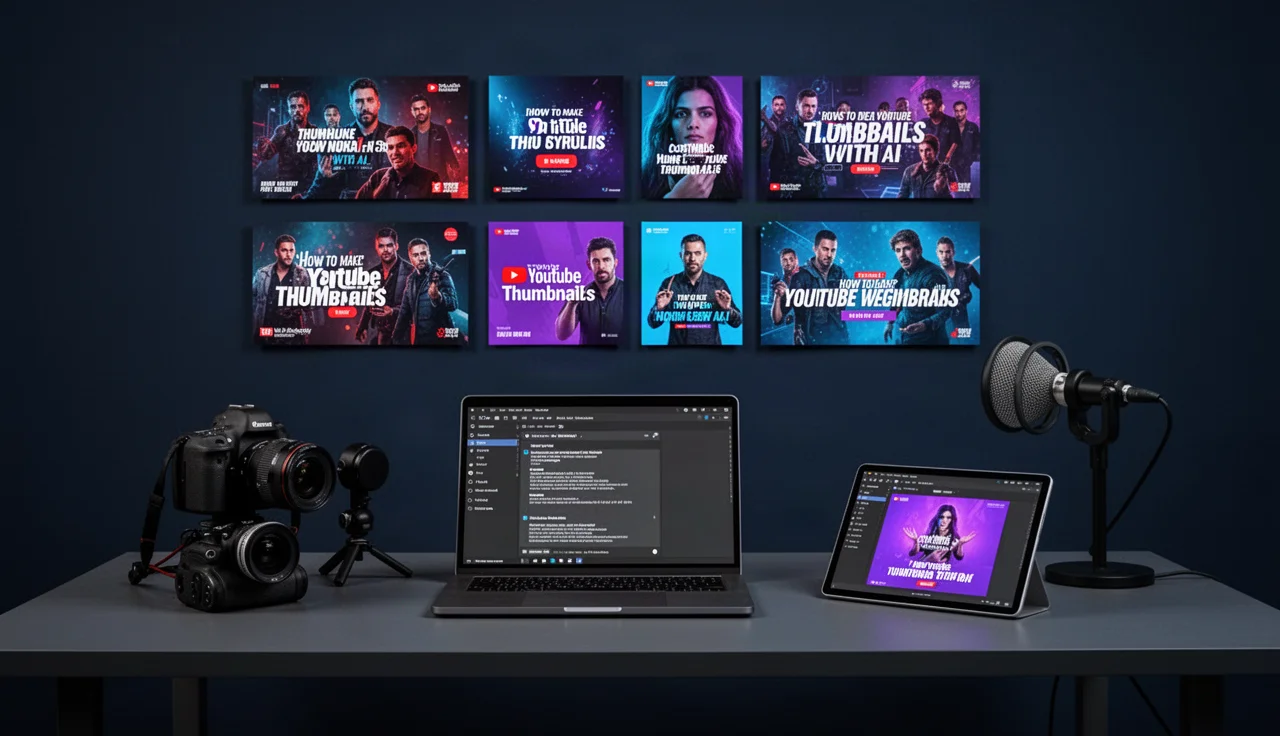
By TheCreatorPilot Team — creators testing AI tools for video, YouTube and content
You sit there staring at a blank thumbnail canvas while your finished video sits unpublished, and the whole cycle feels backwards. The truth is you can make YouTube thumbnails with AI in under ten minutes using a simple workflow: write a specific prompt that describes your subject, emotion and composition, generate a base image with an AI tool, then add text and polish in a design editor like Canva. The AI handles the hard part of creating a striking visual from scratch, while you keep creative control over branding, contrast and readability. Here is exactly how we approach it, plus the tools worth your time.
Quick note: some links in this article are affiliate links, they support the blog at no extra cost to you.
Step-by-Step AI Thumbnail Workflow
1. Write a thumbnail brief, not just a prompt. Before touching any tool, decide three things: who or what is the focal point, what emotion should it trigger, and what composition you want (center framing, side profile, action shot). A vague prompt like "youtuber surprised" gives you generic results. A brief like "young woman holding a microphone, shocked expression, bright studio background, centered, high contrast" gets much closer.
2. Generate the base image with AI. Use an AI image generator to create your focal point. Describe the expression, lighting style, background and camera angle in your prompt. Generate several variations, because your first result is rarely your best. Look for images with clean negative space where your title text will sit.
3. Add text and branding in Canva. Import your base image into Canva and add your title text. Stick to three to five words maximum. Use a bold, readable font, add a subtle stroke or shadow behind the text, and keep contrast high so the words pop at small sizes. This is also where you add your channel's consistent visual style, whether that is a logo corner, a recurring border color, or a standard font.
4. Test at the size people actually see. Download your thumbnail and shrink it to roughly 15% of its original size, about the size it appears in YouTube search results. If your text is unreadable or your subject disappears, go back and simplify. Thumbnails fail at small sizes first.
5. Export and upload. Export as a high-quality PNG or JPG and upload directly to YouTube Studio when you publish your video.
AI Tools That Actually Help
Canva is our recommended starting point, even before you touch a dedicated AI image tool. Its AI image generator (Magic Media) is built directly into the editor, so you can generate an image and add text in one place without switching tabs. The free plan covers the basics, and the paid plan unlocks more generations and premium elements. Skip it if you need very specific, photorealistic results or extensive manual control.
Pikzels is built specifically for YouTube thumbnails. It generates multiple thumbnail variations from a video URL or a short description, and it understands YouTube style conventions out of the box. This is the fastest option when you want ready-made concepts rather than building from scratch. Skip it if you prefer fine-grained control over every design element.
For more on dedicated thumbnail generators, check our guide on how to make AI thumbnails for YouTube videos.
| Tool | Best for | Main strength |
|---|---|---|
| Canva | Full design control | AI image generation plus full text and branding tools in one editor |
| Pikzels | Speed and ready concepts | Generates thumbnail variations directly from your video or description |
What Makes an AI Thumbnail Work
AI handles image generation, but you decide whether the thumbnail gets clicked. The same rules of good thumbnail design still apply. Keep one clear focal point, avoid clutter, and never let the AI decide your text. AI-generated text inside images is often misspelled or awkwardly placed, so always add your title in a proper design editor after generating your base image.
Contrast matters more than cleverness. A thumbnail with a bright subject on a darker background performs consistently better than a busy, colorful image with no visual hierarchy. Use facial expressions when possible, because human faces draw the eye in a sea of competing thumbnails. And maintain consistency across your channel so regular viewers recognize your videos instantly.
As of 2026, AI image generation quality has improved dramatically, but the tools still work best as collaborators rather than replacements. You bring the concept, the emotion and the taste. The AI brings speed and iteration.
FAQ
Can I make YouTube thumbnails with AI for free?
Yes. Canva's free plan includes limited AI image generations, which is enough to test the workflow without paying. Check current plan limits on the official site, as these change frequently.
What AI tool is best for YouTube thumbnails?
Canva is the best all-rounder because it combines AI image generation with full design tools. Pikzels is better if you want fast, YouTube-specific concepts from a video URL or description.
Does AI make text for thumbnails?
AI image generators often produce garbled or misspelled text. A better approach is generating the background image with AI and adding clean, readable text in Canva afterwards.
How many words should a thumbnail have?
Three to five words maximum. Thumbnails appear very small in search results, so more text becomes unreadable and hurts click-through instead of helping it.
How long does it take to make an AI thumbnail?
With a clear brief, you can generate a base image and add text in under ten minutes. The variable is iteration: expect to create a few variations before finding one that works.
AI thumbnails are a speed tool, not a creativity shortcut. You still need a clear concept, a readable title and a design that survives the small-size test. Nail those, and AI saves you the tedious part so you can publish faster.